The APK vs App Store question usually arrives at an awkward moment: you have downloaded a file, your phone is showing a warning, and you are trying to work out whether this is normal. It is normal. It is also genuinely different from installing through a store, in ways that continue long after the install finishes.
Most explanations focus on whether sideloading is safe. That is a real question, and it has its own guide. This one covers the practical differences, which get less attention and cause more day to day friction: how updates reach you, whether you can go back a version, what you can see before installing, and what you are signing up to maintain.
Everything here applies to any Android app distributed outside the Play Store.
Quick Answer
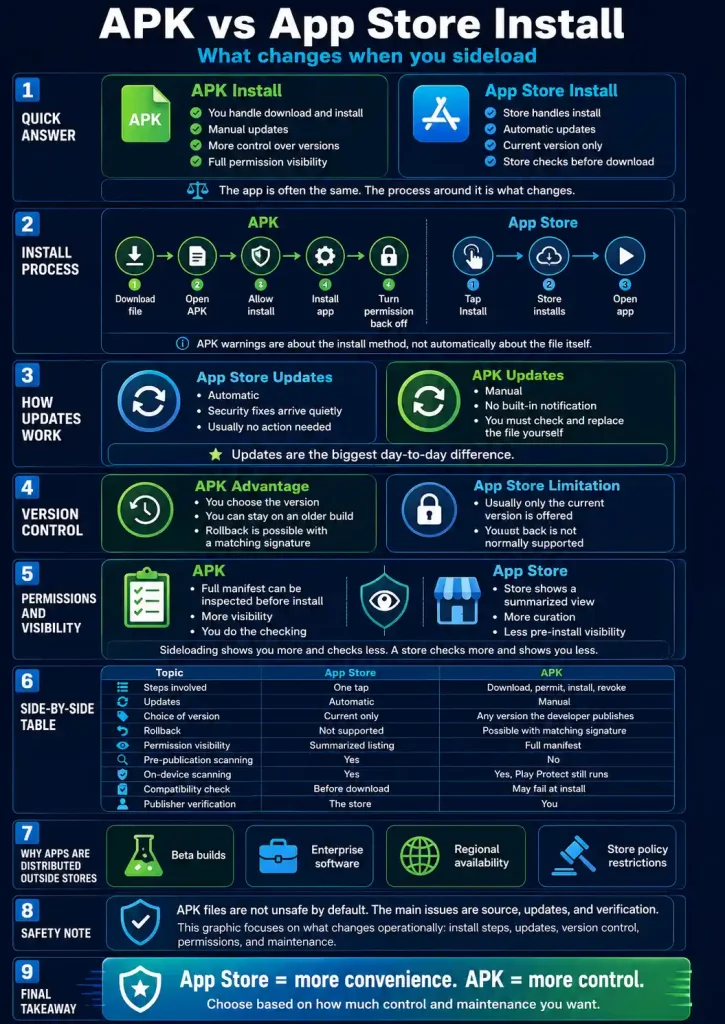
In the APK vs App Store comparison, the app you end up with is usually identical. The same developer builds both, and an APK from a developer’s own site is often the exact file the store would have delivered.
What changes is everything around it. The store handles downloading, installing, updating, and removing the app, and it decides which version you get. With an APK you handle all of that. That means more control, including the ability to choose or hold a version, and more responsibility, most notably that nothing will tell you when a security fix is available.
The single most consequential difference is updates. A store app stays current without you doing anything. A sideloaded app stays exactly as installed until you replace it yourself, which is where most of the problems attributed to sideloading actually originate.
APK vs App Store: The Install Process
Store installs are one tap. You press Get or Install, and the store downloads the package, verifies it, installs it and adds the icon. You are not shown the file and you do not interact with it.
An APK install has more steps because you are performing those jobs yourself.
You download the file from the developer’s site. Your browser warns you that this file type can harm your device, which it shows for every APK regardless of contents. You open the file, and Android blocks the installation, offering a settings screen where you allow installs from whichever app the file came from. You grant that, install, and then switch the permission back off.
Two points people commonly misread. The install permission is granted to your browser or file manager, not to the app being installed. And the warnings are about the method rather than the file, so they appear identically for a legitimate developer’s own build and for something dubious. A worked example of the full sequence is in this step-by-step installation walkthrough.
APK vs App Store: How Updates Work
This is the difference that matters most, and it is the one people underestimate.
Store apps update themselves. New versions arrive in the background, usually overnight on Wi-Fi. Security patches reach you without any decision on your part. You may not even notice a version has changed.
Sideloaded apps do not. There is no update channel. Nothing checks, nothing notifies, nothing downloads. The version you installed is the version you have until you actively go and get another one.
The practical consequence is a category of problem that looks like bugs and is not. Sessions that expire immediately, features that stop working, payment screens that error out, games that fail to load. In most cases the app is simply several versions behind a platform that has moved on. Anyone running a sideloaded app should check their version periodically against whatever the developer publishes.
Updating is otherwise straightforward. You download the newer file and install it over the existing app without uninstalling first, which preserves your login and settings. Android permits this only when both files carry the same developer signature, which is a deliberate safeguard rather than an obstacle.
APK vs App Store: Version Control
Here the comparison runs the other way, and sideloading has a genuine advantage that rarely gets mentioned.
A store gives you the current version and nothing else. If an update breaks something you rely on, or removes a feature, or performs worse on your hardware, you generally cannot go back. Rolling back a Play Store app is not a supported action for ordinary users.
With APKs, you control which version you install and when. If a new build has a problem, you can stay on the one that works. If you have kept the previous file, you can reinstall it. Developers distributing directly often keep older releases available for exactly this reason.
Two caveats worth stating. Signature matching still applies, so you can only install a version signed by the same developer. And staying on an old version to avoid a bug means also staying without whatever security fixes shipped since, which is a trade rather than a free win.
APK vs App Store: Permission Visibility
You can see more before installing an APK than before installing from a store, which surprises most people.
Every permission an app may use is declared in its manifest, a file inside the APK. Free inspection tools read that manifest and display the full list without installing anything. So you can know exactly what an app is capable of requesting before it touches your phone.
A store listing shows a summarised permission section, which is less granular and easier to skim past. On iOS there is no equivalent pre-install list at all, since permissions are requested at first use with a written justification that Apple reviews.
So the trade is visibility against curation. Sideloading shows you more and checks less. A store checks more and shows you less. What the manifest contains and how to read it is covered in this guide to app permissions, and the file structure itself in this breakdown of APK contents.
Uninstalling and What Is Left Behind
Removal works identically. Settings, Apps, select the app, Uninstall. There is no difference in how cleanly a sideloaded app is removed.
Two differences sit around the edges. A store can pull a malicious app from distribution and, in serious cases, remove it from devices remotely. Nothing equivalent exists for sideloaded apps, which stay until you remove them yourself. And the downloaded APK file itself remains in your Downloads folder after installation, doing nothing but occupying space, so it is worth deleting once the app is working.
If an app resists uninstallation, it may hold device administrator permission, which needs revoking first under Settings, Security, Device admin apps. That is unusual for legitimate software and worth treating as a warning sign.
APK vs App Store: Side by Side
|
App store install |
APK install |
|
|---|---|---|
|
Steps involved |
One tap |
Download, permit, install, revoke |
|
Warnings shown |
None |
Browser and system warnings, always |
|
Updates |
Automatic |
Manual, no notification |
|
Choice of version |
Current only |
Any version the developer publishes |
|
Rollback |
Not supported |
Possible with a matching signature |
|
Permissions before install |
Summarised listing |
Full manifest, readable in advance |
|
Pre-publication scanning |
Yes |
No |
|
On-device scanning |
Yes |
Yes, Play Protect still runs |
|
Remote removal if malicious |
Possible |
No |
|
Compatibility check |
Before download |
Fails at install instead |
|
Who verifies the publisher |
The store |
You |
The compatibility row causes avoidable confusion. A store checks your device before letting you download, so an incompatible app simply is not offered. An APK downloads happily onto a device that cannot run it and then fails at install, usually with a parsing error that says nothing about your Android version.
Why Apps Get Distributed Outside Stores
Sideloading is not a workaround, and the reasons are mostly mundane.
Beta and internal builds are distributed directly because they are not meant for public listing. Enterprise software is deployed inside organisations without a public store presence. Regional availability means an app listed in one country may be unavailable in another. And some categories are restricted by store policy regardless of the developer’s standing, which is why certain licensed operators distribute directly.
None of these imply anything about quality. A serious company distributing its own signed build outside a store can be a better bet than a poorly maintained app inside one. The relevant question is who the publisher is, not which channel delivered the file.
What About Safety?
Briefly, since it has its own guide.
The format carries no risk. The delivery method removes one layer of automated pre-publication checking. The source you download from determines nearly everything, and the largest real risk is repackaged copies hosted on aggregator sites rather than anything about APKs as such.
If a warning from Google Play Protect is what brought you here, this guide explains what those warnings mean. For the full treatment of risk, verification and when not to sideload at all, see the APK download safety guide.
Frequently Asked Questions
Is an APK the same app as the store version?
Usually identical, when it comes from the developer. The same build is often what a store would have distributed. Files from aggregator sites are a different matter, since they may be modified or outdated.
Do I lose anything by installing an APK instead?
Automatic updates, pre-publication scanning, and the store’s ability to remove a bad app remotely. You gain version control and better visibility of permissions before installing.
Can I switch from an APK to the store version later?
Only if the app is listed in the store for your country, and only if both carry the same signature. Otherwise you would need to uninstall first, which may lose local settings.
Why does my phone warn me every time?
The warning describes the installation method, not the file. It appears identically for every sideloaded app and is not the result of any scan.
How do I know when a sideloaded app needs updating?
Check the version inside the app, usually under an About or Settings screen, against what the developer publishes. Nothing will prompt you, so it has to be a habit.
Does sideloading affect app performance?
No. Once installed, an app runs identically regardless of how it arrived. Performance depends on the app and your hardware, and minimum specifications are usually published on the developer’s download page.
Responsible Gaming
You must be 21 or older to hold a KK8 account. Deposit and time limits, plus self exclusion, are available under Profile then Responsible Gambling. If gambling is causing difficulty for you or someone close to you, the National Council on Problem Gambling in Singapore operates a helpline on 1800-6-668-668.